How to use your Kacrow seller account
A simple guide, one step at a time. Sign in, set up your store page, post a deal, take bookings and reply to your customers.
Not on Kacrow yet? Add your business
The names of buttons and boxes are written here exactly as you see them on your screen.
Before you start
Kacrow is where people look for local businesses and their offers. You post a deal or an event, people see it on kacrow.com, and then they visit you, call you or message you.
Good to know
Listing is free right now. There is no monthly fee and no commission.
Kacrow never takes or holds your money. Customers pay you directly, the same way they pay you today.
There are two websites. kacrow.com is what your customers see. The seller portal is where you manage everything. Its address is partners.kacrow.com/seller.
The seller portal works on a phone. You do not need a computer.
Keep these ready
The email address you used when you applied.
One or two clear photos of your shop, food, room or product. Each photo must be smaller than 5 MB.
Your address, phone number and opening hours.
A photo of your payment QR, if you want to sell tickets for an event.
Create your account and sign in
You apply once. After our team approves your business, you set a password and sign in.
1. Apply
Open kacrow.com/partner/apply.
Fill in Company name, Your name, Email, Phone and Business address. Choose your country under Where do you trade?
Send the form.
Our team checks your details. This usually takes a few working days.
2. Set your password
When you are approved, you get two emails from Kacrow. The first one says your business is live. The second one is called Set your Kacrow password.
Open the second email and press Set my password.
Choose a password that you can remember and save it.
Please note: The password link works for 15 minutes only. If it has stopped working, open the seller portal and press Reset next to Forgot password? We will email you a new link.
3. Sign in
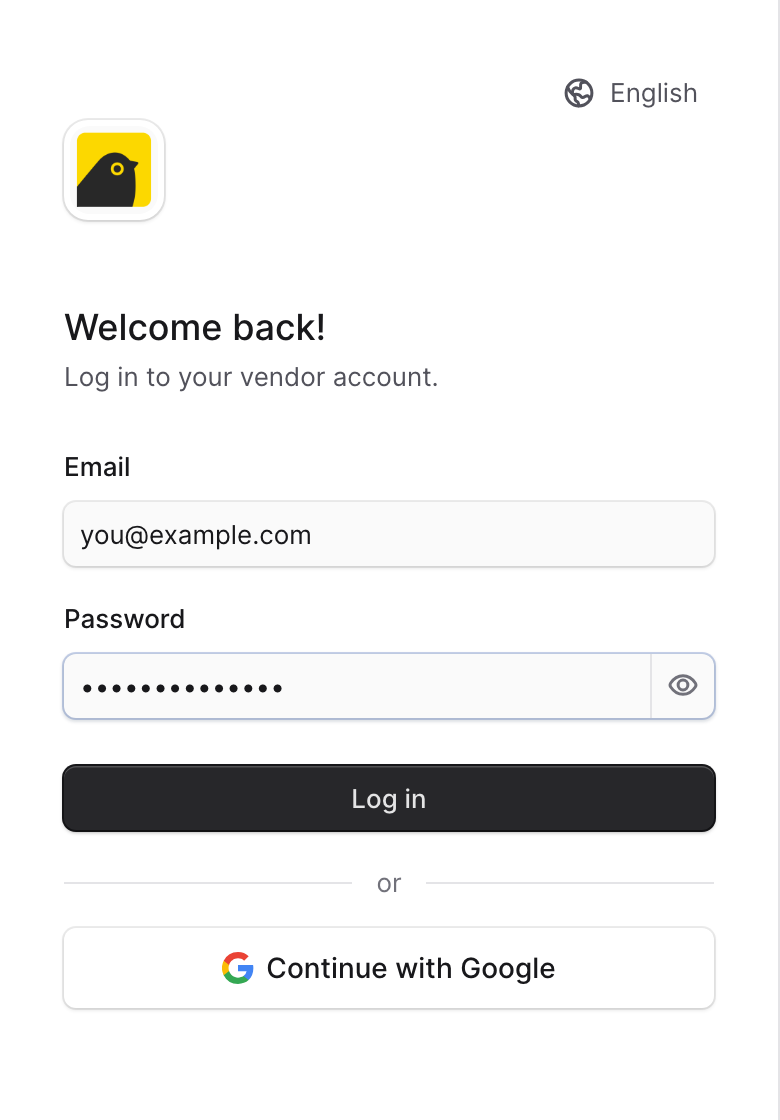
Type your email and password and press Log in.
You can also press Continue with Google. Use the Google account that has the same email you applied with.
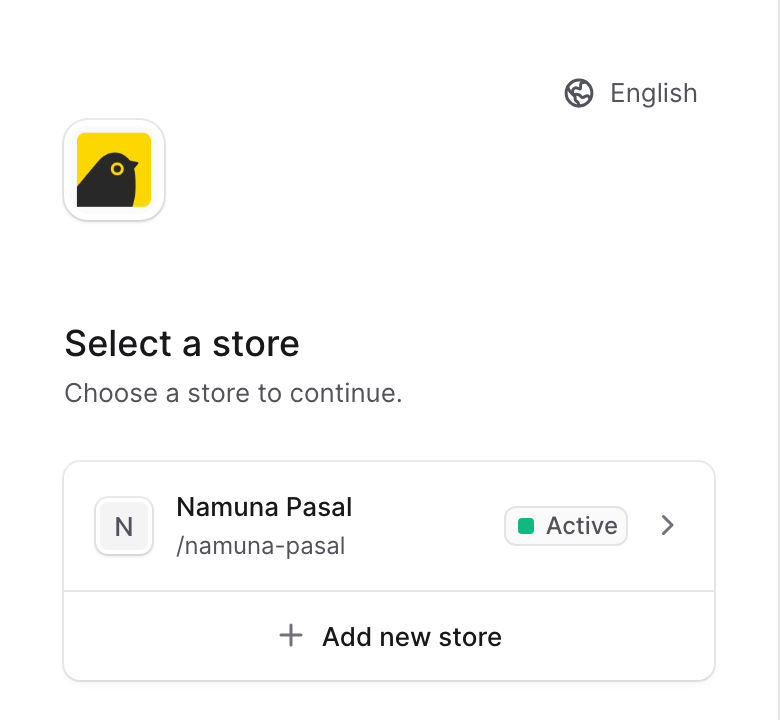
If you see Select a store, tap the name of your store.
4. Find the menu
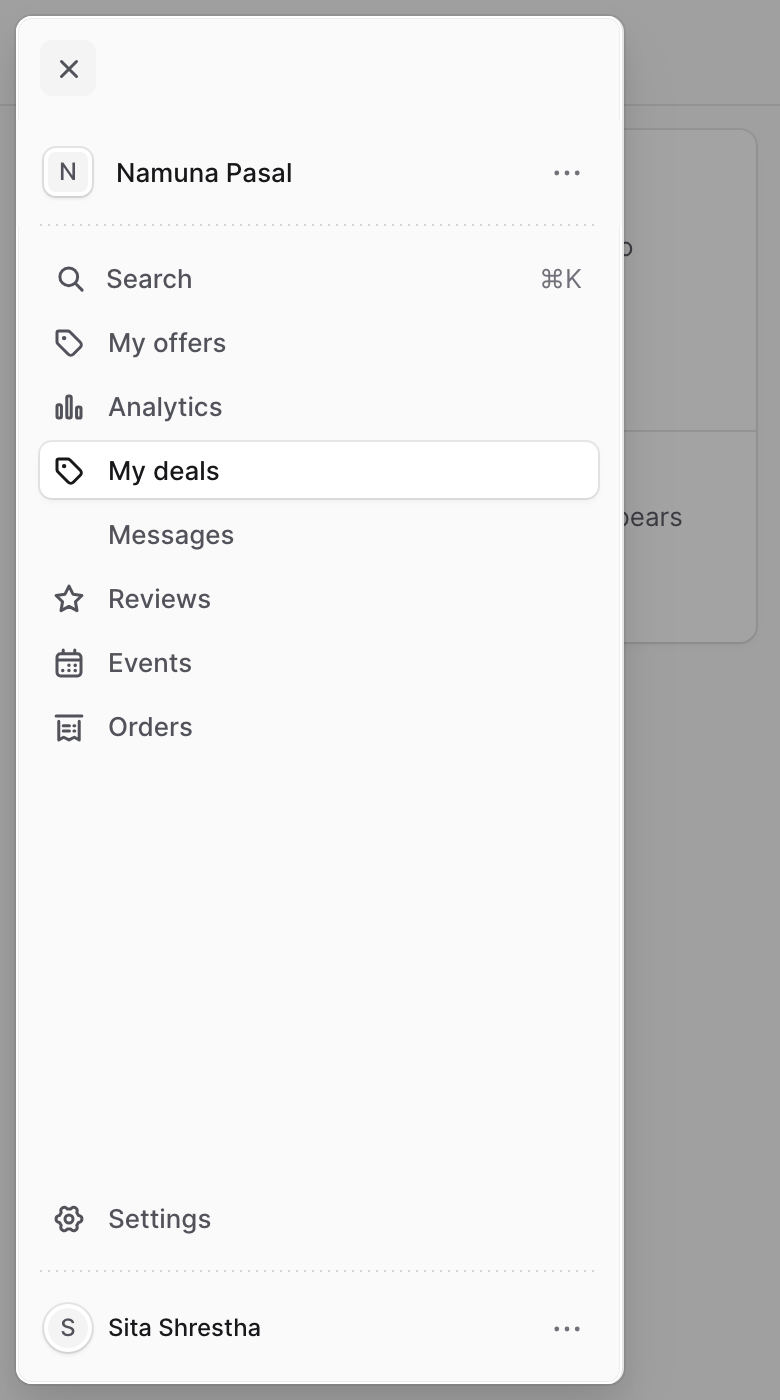
Every page in this guide starts from the menu. On a computer the menu is always on the left. On a phone it is hidden.
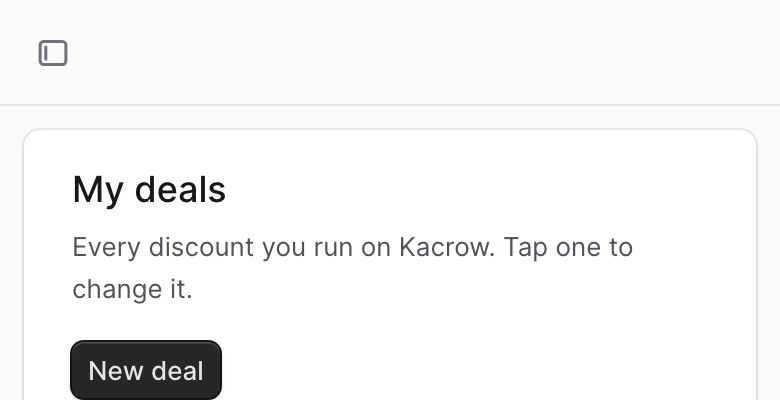
On a phone, tap the small square icon at the top left of the screen.
The menu opens. Tap the page you want, for example My deals.
Settings is at the bottom of the menu.
Tip: Add the seller portal to the home screen of your phone. Then you can open it with one tap, like an app.
Set up your store page
Your store page is the home of your business on Kacrow. Customers see your photos, address, opening hours and all your offers there. Please fill it in before you post your first deal.
Open the form
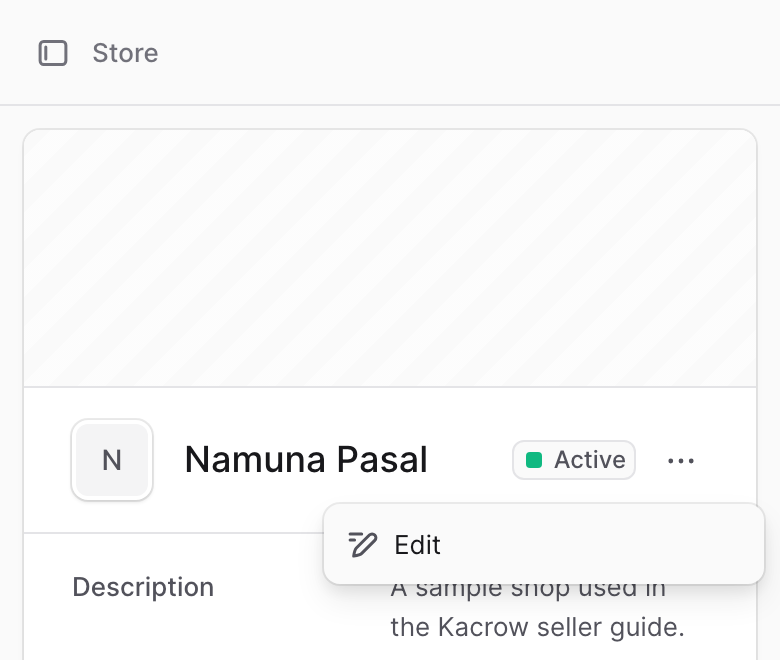
In the menu, open Settings and then Store.
Press the three dots (⋯) at the top of the store box and choose Edit.
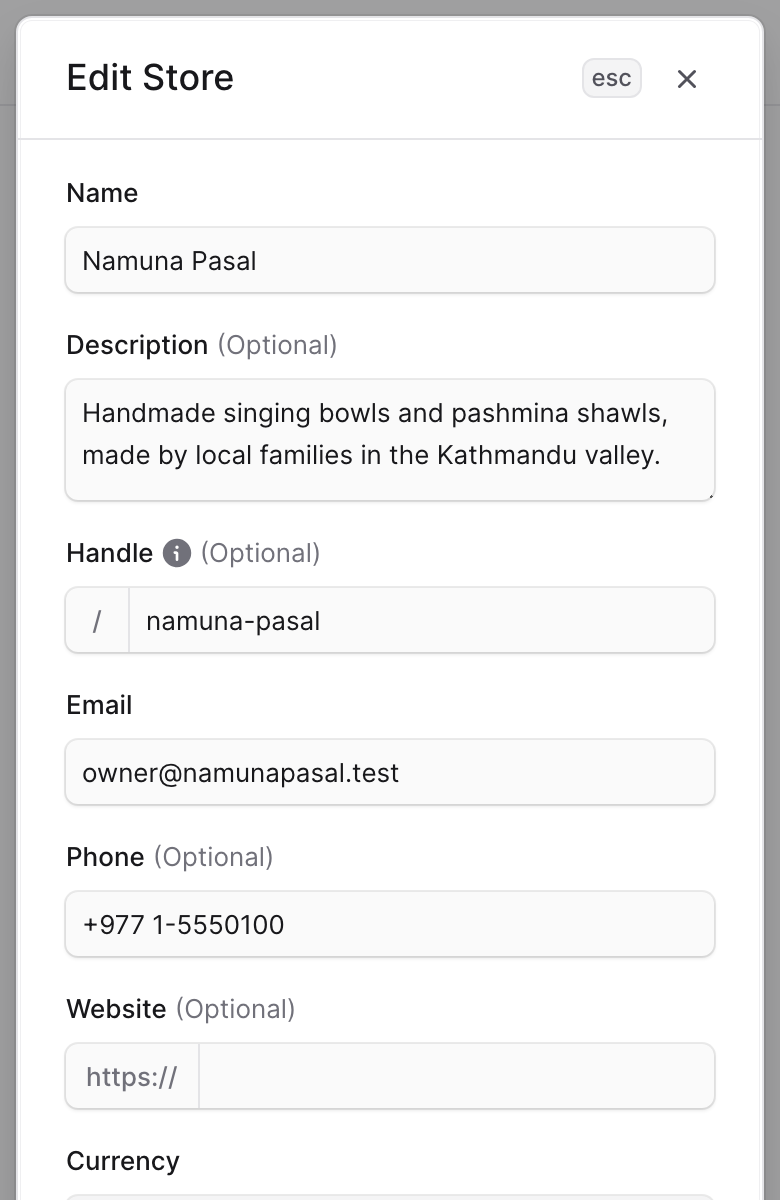
Fill in the boxes. You will find what each box means below.
Press Save.
What each box means
- Logo and banner
- Your logo and one wide photo of your business. These are shown at the top of your page.
- About your store
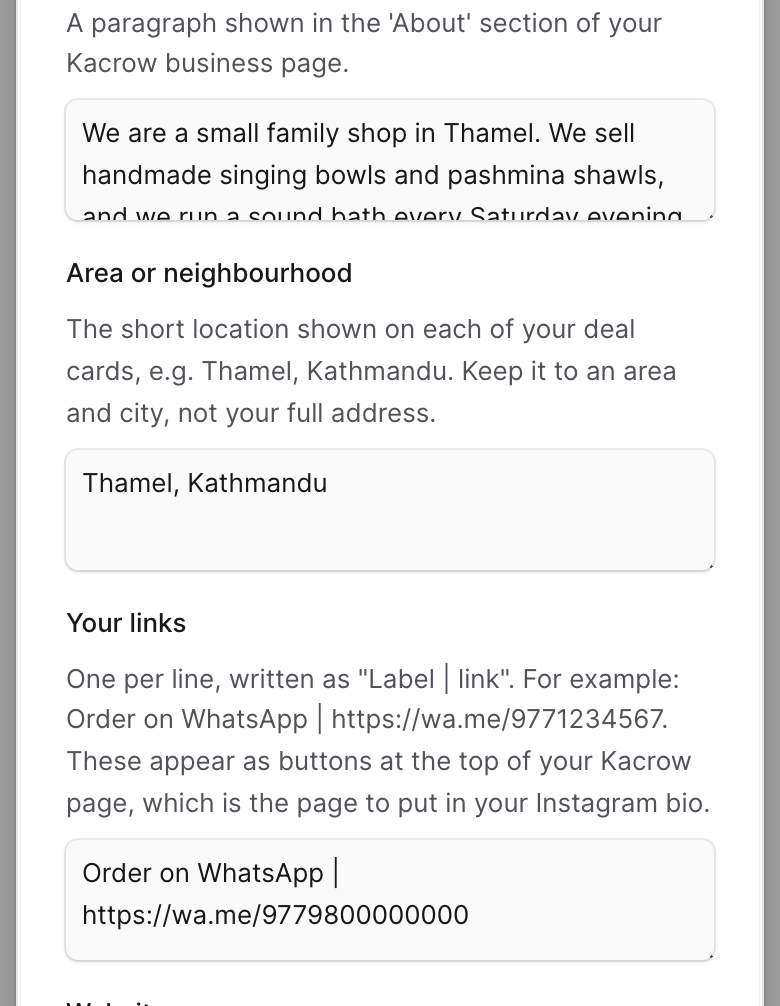
- A few sentences about your business. What do you sell, and what makes you special?
- Area or neighbourhood
- A short location, for example Thamel, Kathmandu. This is printed on every deal card, so please do not leave it empty.
- Your links
- One link on each line, written as Label | link. For example: Order on WhatsApp | https://wa.me/9771234567. Each line becomes a button at the top of your page.
- Website
- Your own website, if you have one. If not, leave it empty.
- Amenities and more
- What you offer, with a comma between each one. For example: Free parking, Home delivery, Gift wrapping.
- Highlights for your visit
- One on each line, written as Title | Description. For example: Free parking | Space for ten cars right outside.
- Full address
- Your complete address, so people can find you.
- Contact phone
- Customers can tap this number to call you.
- Business hours
- When you are open. For example: Sun to Fri 9 AM to 6 PM, Sat 9 AM to 3 PM.
- Google Maps search query
- The words a person would type in Google Maps to find you. For example: Giftmandu Lalitpur Nepal. This is used for the View on map link.
- Latitude and Longitude
- Two numbers that show exactly where you are. They help people who search for places near them. On a computer, open Google Maps, right-click on your shop and click the two numbers to copy them. On a phone, press and hold on your shop until a red pin appears, and the two numbers are shown. The first number is the latitude and the second is the longitude.
Tip: After you save, open your own page on kacrow.com and look at it the way a customer would. If something looks empty, go back and fill it in.
Put your Kacrow link on Instagram
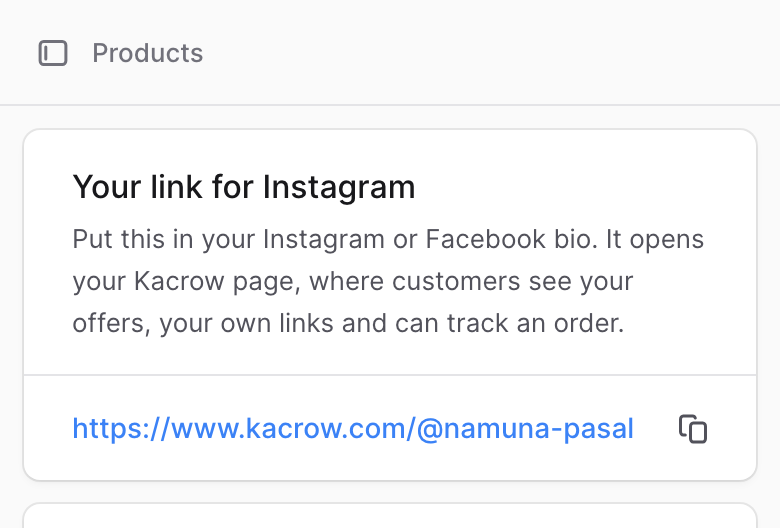
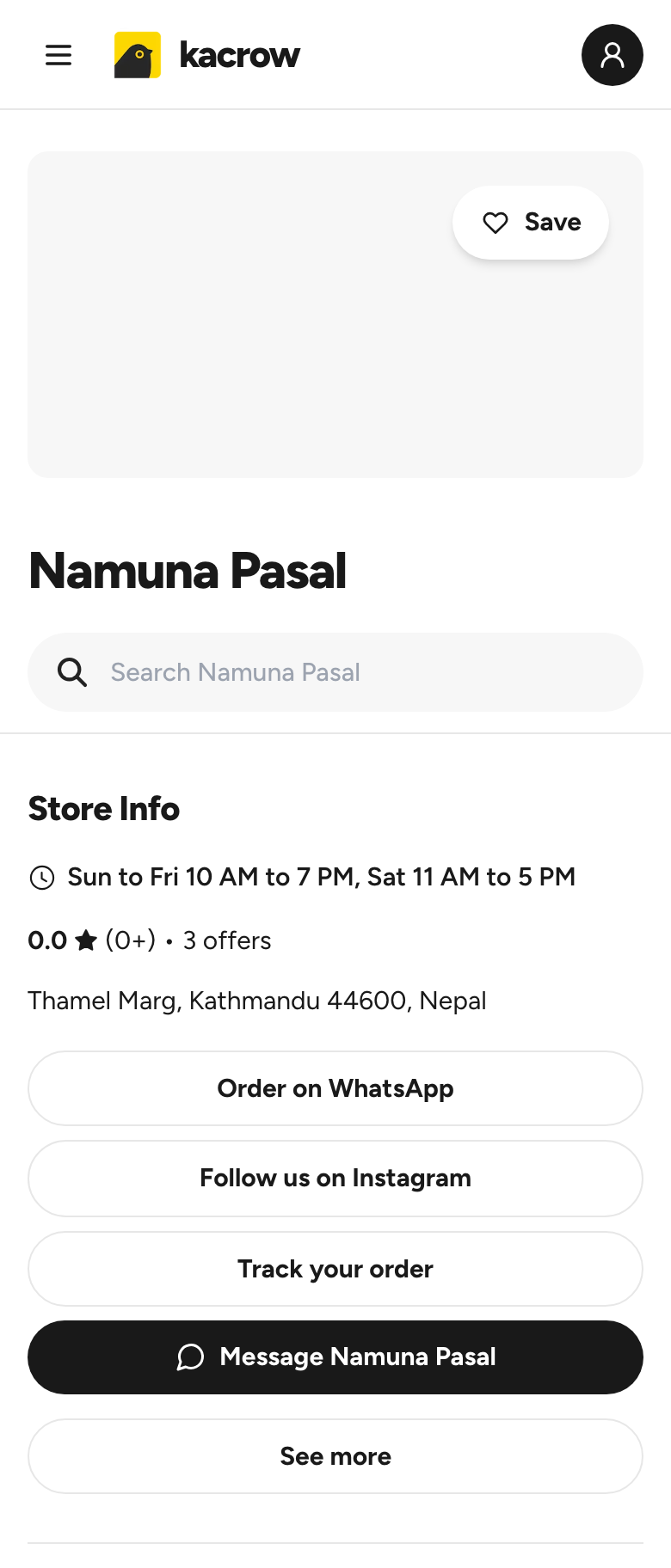
Instagram lets you put a link in your bio. Kacrow gives you one short link that opens your store page, with your offers, your own link buttons and order tracking in one place.
Steps
In the menu, open My offers.
At the top you will see a box called Your link for Instagram. The link looks like kacrow.com/@yourshop.
Press the copy button next to the link.
Open Instagram, go to edit profile, and paste the link. You can do the same on Facebook and TikTok.
Please note: If you do not see this box, your store is not fully set up yet. Finish your store page first, then look again.
Post a deal
A deal is a discount or a special offer. For example: 20% off all momos this week.
Create the deal
In the menu, open My deals and press New deal.
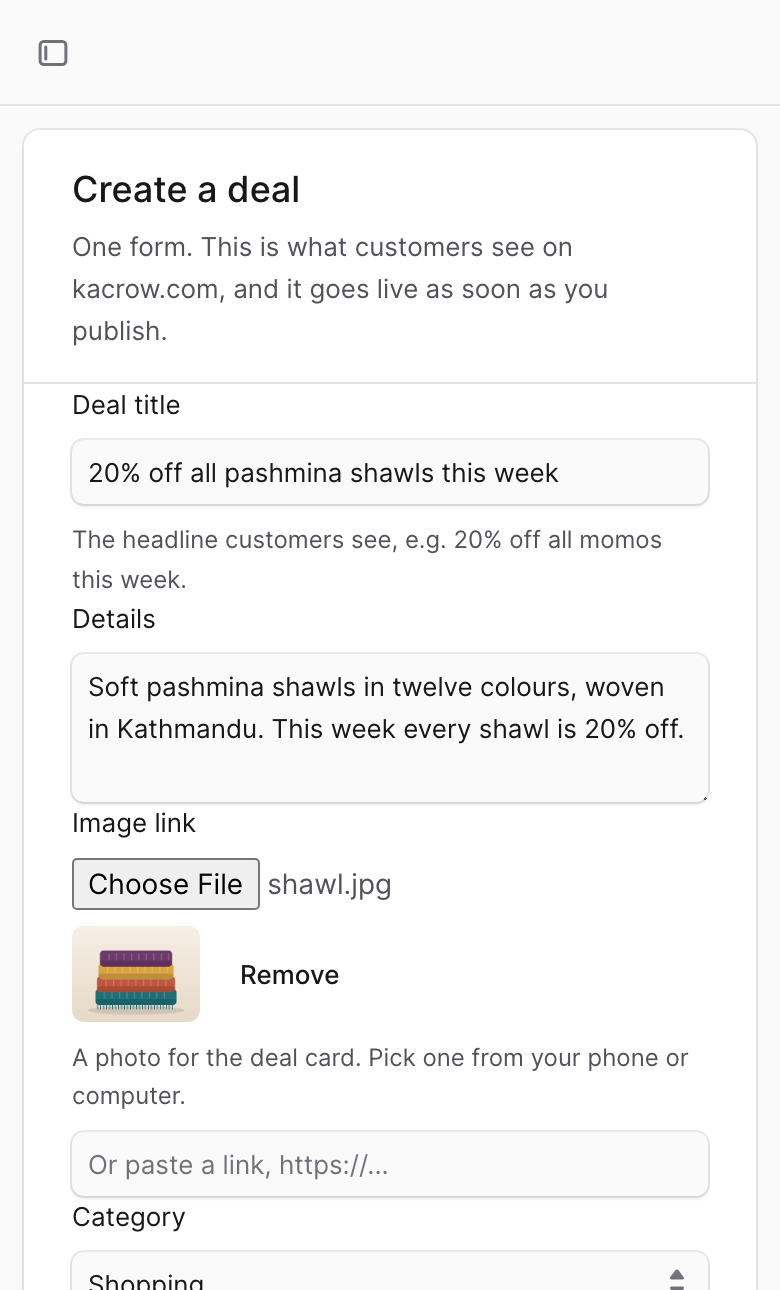
Fill in the form. You will find what each box means below.
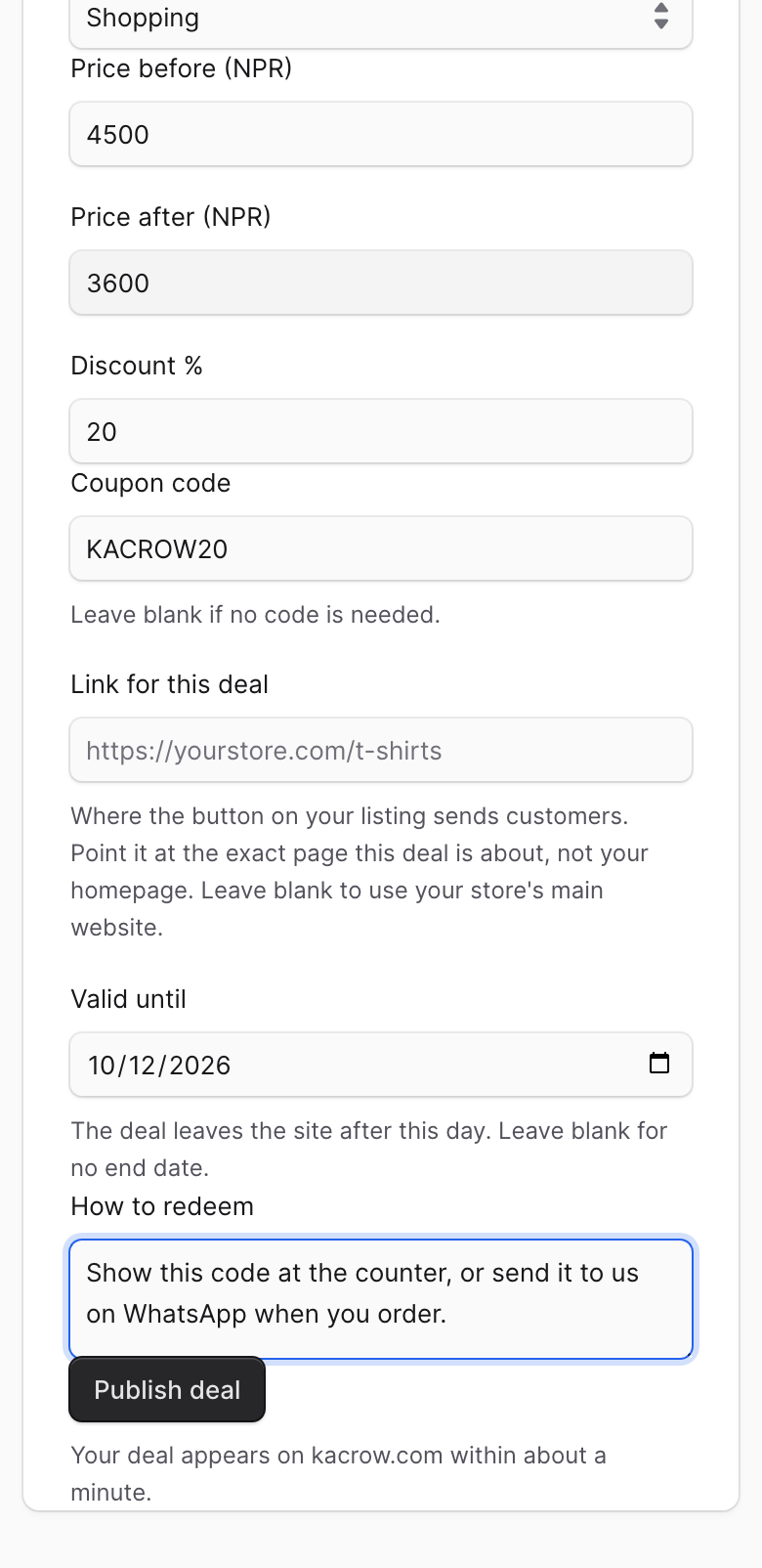
Press Publish deal.
You go back to the My deals list and your new deal is there. It shows on kacrow.com in about one minute.
What each box means
- Deal title
- The headline your customers see. Keep it short and clear. You must fill this in.
- Details
- Two or three sentences about the offer. What does the customer get?
- Image link
- Choose a photo from your phone or computer. It must be smaller than 5 MB. If your photo is already on the internet, you can paste its link in the box below instead.
- Category
- Choose the one that fits your business best.
- Price before and Price after
- The normal price, and the price with the deal.
- Discount %
- How much is off. For 20% off, type 20.
- Coupon code
- A code the customer shows or tells you, for example KACROW5. Leave it empty if no code is needed.
- Link for this deal
- If this deal has its own page on your website, paste that link. Leave it empty to use your main website.
- Valid until
- The last day of the deal. After this day it leaves the site by itself. Leave it empty if the deal has no end date.
- How to redeem
- Tell the customer how to get the deal. For example: Show this code at the counter. Dine-in only, weekdays before 5 pm.
Change or stop a deal
Open My deals. Your deals are in two lists: Running and Finished.
Tap the name of the deal. The Edit deal page opens.
Change what you need and press Save changes. kacrow.com shows the change in about one minute.
To stop a deal, set Valid until to today and save. The deal leaves the site after today.
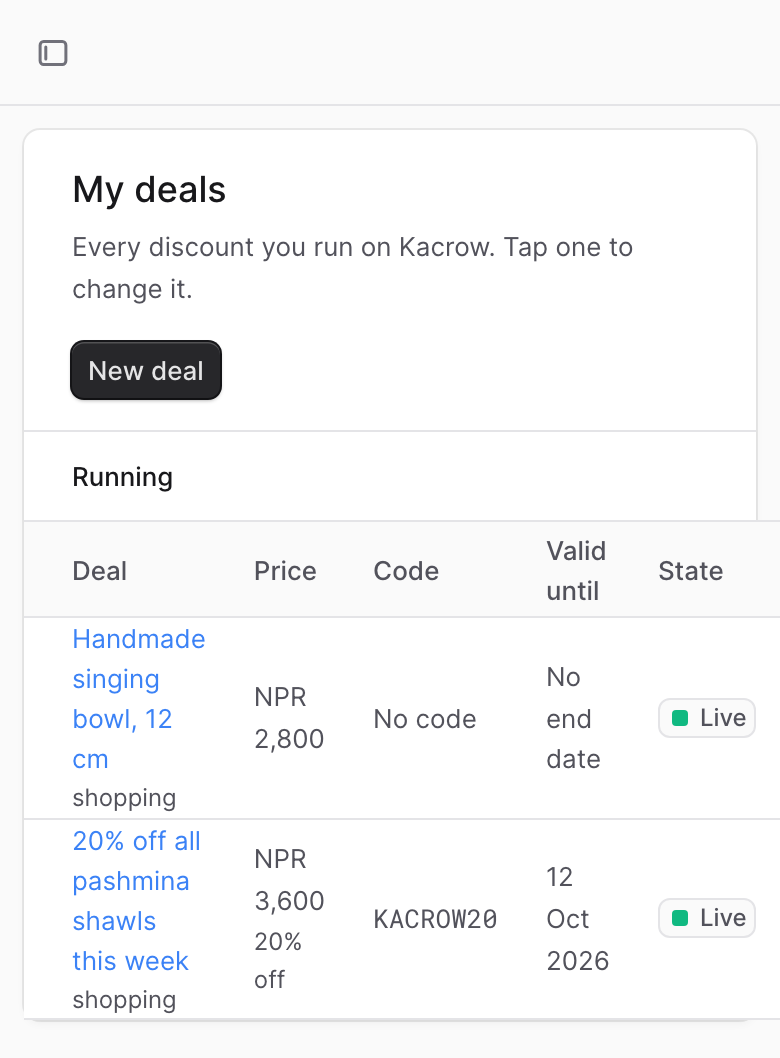
What the State column means
- Live
- Customers can see the deal on kacrow.com.
- Ended
- The last day has passed. To run it again, open the deal and choose a new date.
- Not on the site
- Customers cannot see the deal. Most of the time this means our team took it down and sent you an email with the reason.
Tip: A bright, clear photo and a simple title bring the most customers. Write the way you would tell a customer at your counter.
List every product you sell
You do not need a discount to be on Kacrow. You can list anything you sell at its normal price. Many shops put everything they sell on Kacrow this way, so customers can see it all in one place.
Add a product
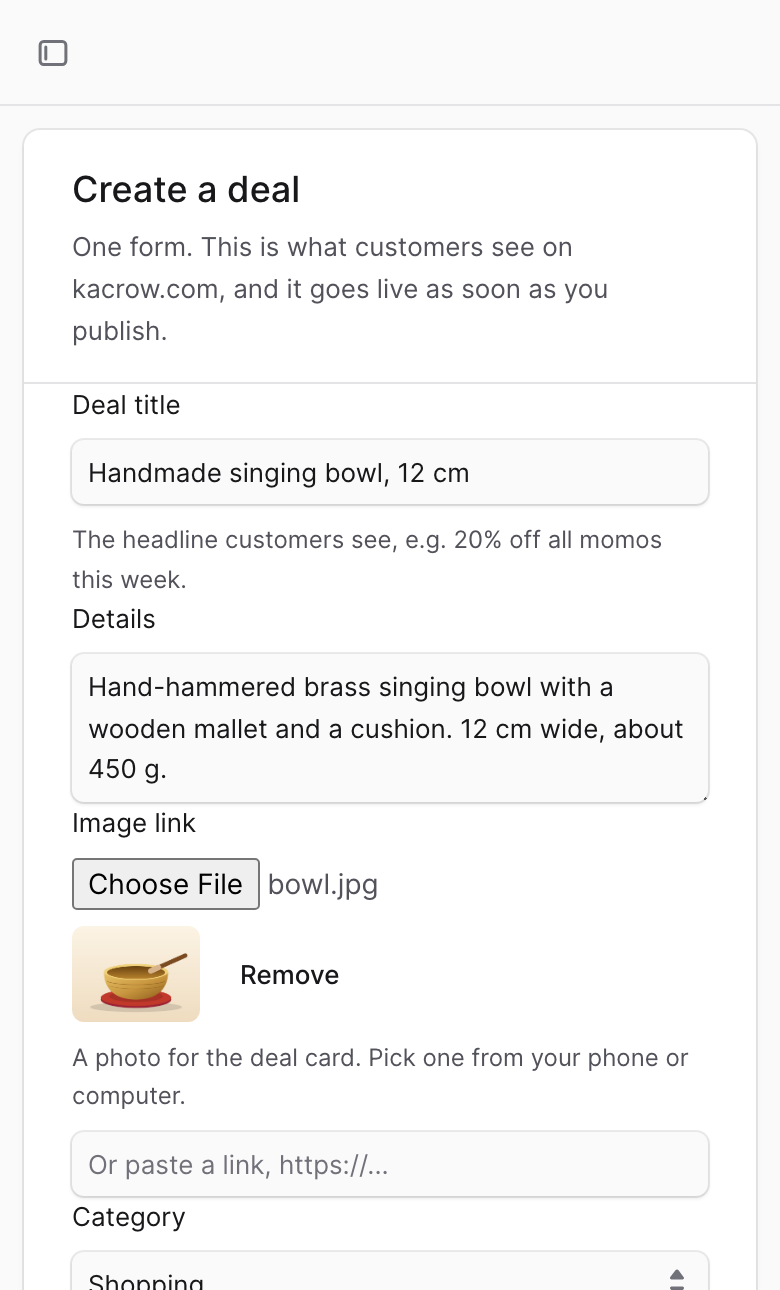
You use the same form as for a deal. You only fill in fewer boxes.
In the menu, open My deals and press New deal.
In Deal title, write the name of the product. For example: Handmade singing bowl, 12 cm.
In Details, describe the product. Size, colour, material, and what the customer gets.
Add a photo and choose the Category.
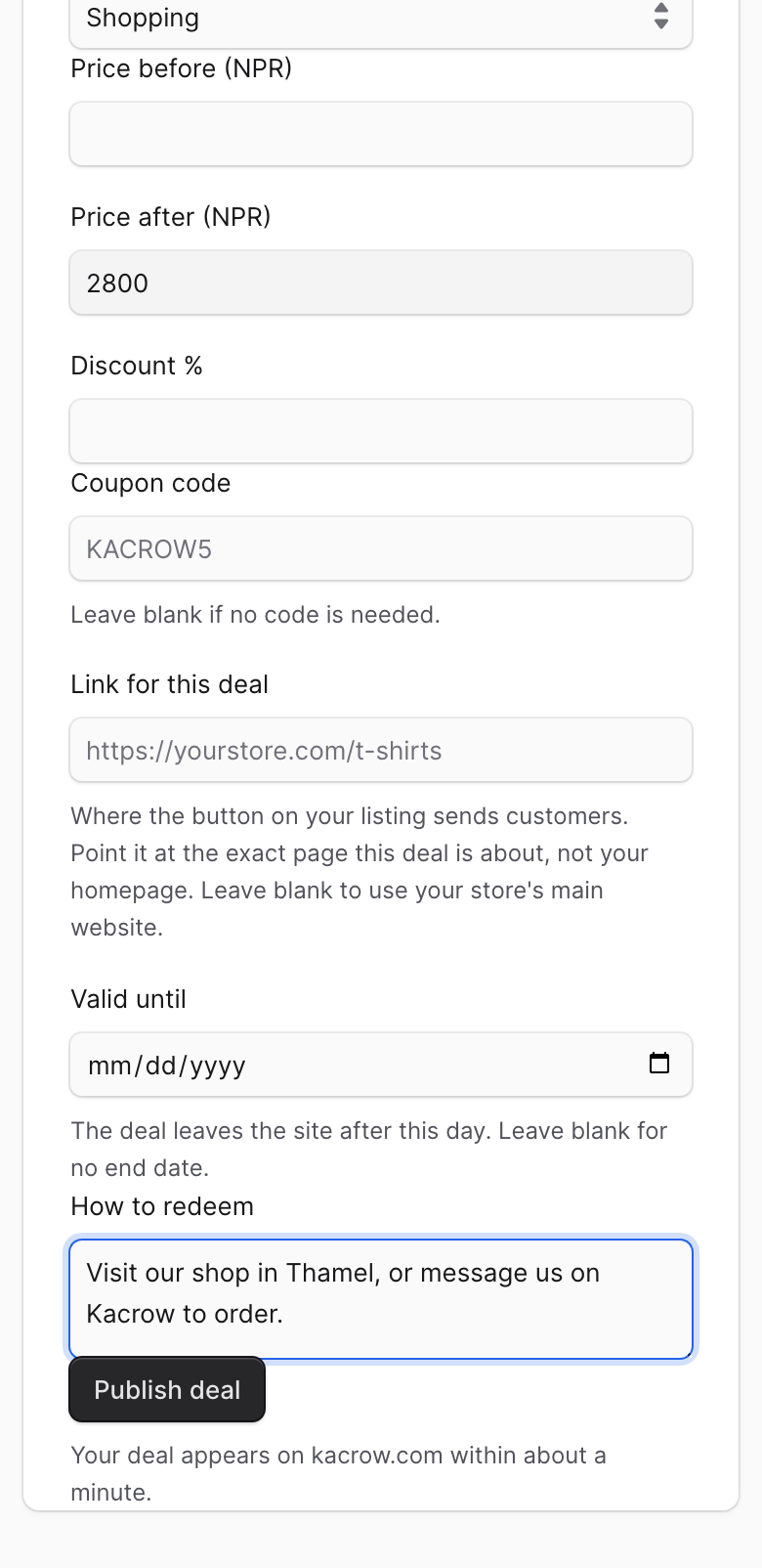
Type your normal price in Price after.
Leave Price before, Discount %, Coupon code and Valid until empty.
In How to redeem, tell the customer how to buy. For example: Visit our shop in Thamel, or message us on Kacrow to order.
Press Publish deal. Do the same for your next product.
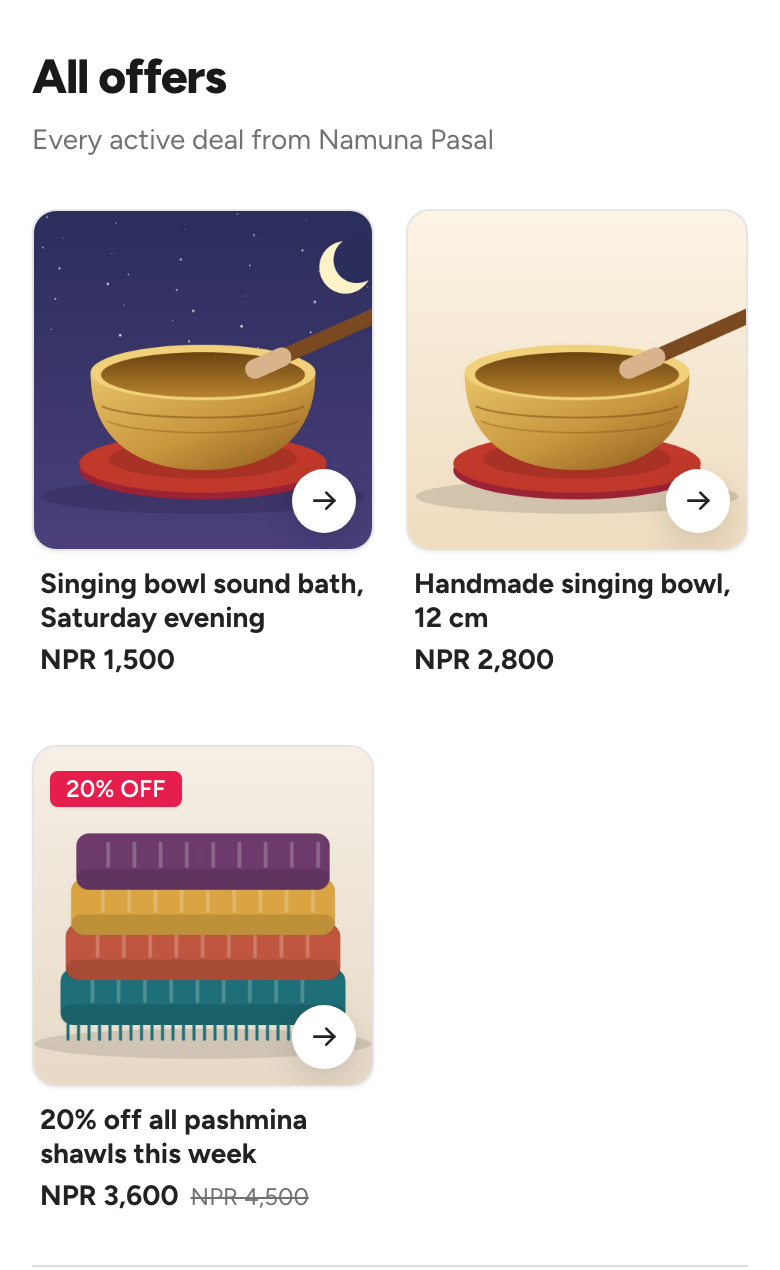
What your customer sees
A product shows its price and nothing else. A deal shows the new price, the old price crossed out, and how much is off.
Good to know
You can list as many products as you like. Make one listing for each product.
A product with no end date stays on Kacrow until you stop it.
Kacrow does not take the payment. The customer messages you, calls you or visits your shop, and pays you directly.
Want to put a product on sale later? Open it, fill in Price before and Discount %, and save. It becomes a deal.
Tip: Start with the five products you sell the most. Then add a few more every week.
List an event or a service people can book
Use this for anything people book a place for. A meetup, a class, a trek, a photo shoot. People book on kacrow.com and pay you directly on your own QR.
Create the event
In the menu, open Events and press New event.
Fill in Event name, Details, the photo and the Category.
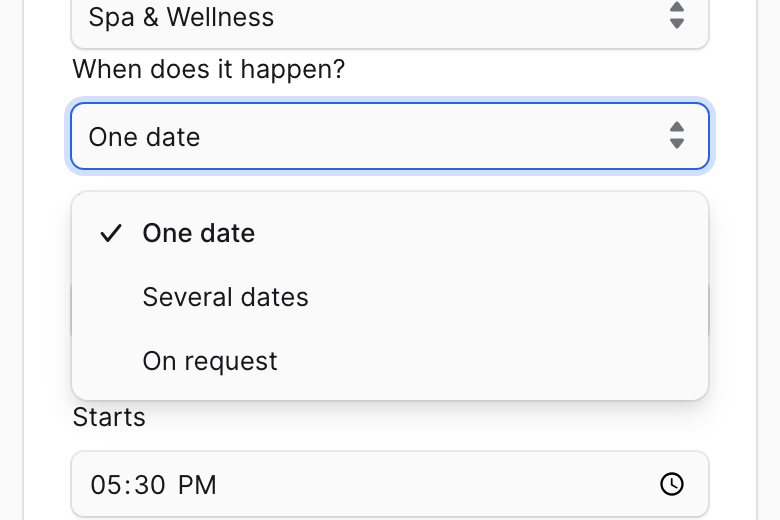
Under When does it happen? choose one of the three options below.
Fill in the other boxes and add your payment QR.
Press Publish event. It shows on kacrow.com in about one minute.
When does it happen?
- One date
- It happens one time. People book a place on that date.
- Several dates
- The same thing on many dates. Pick a date and press Add date, then do it again for the next date. People choose the date they want.
- On request
- There is no fixed date. The customer asks for a date and you say yes or no. This is good for photography, weddings and similar services.
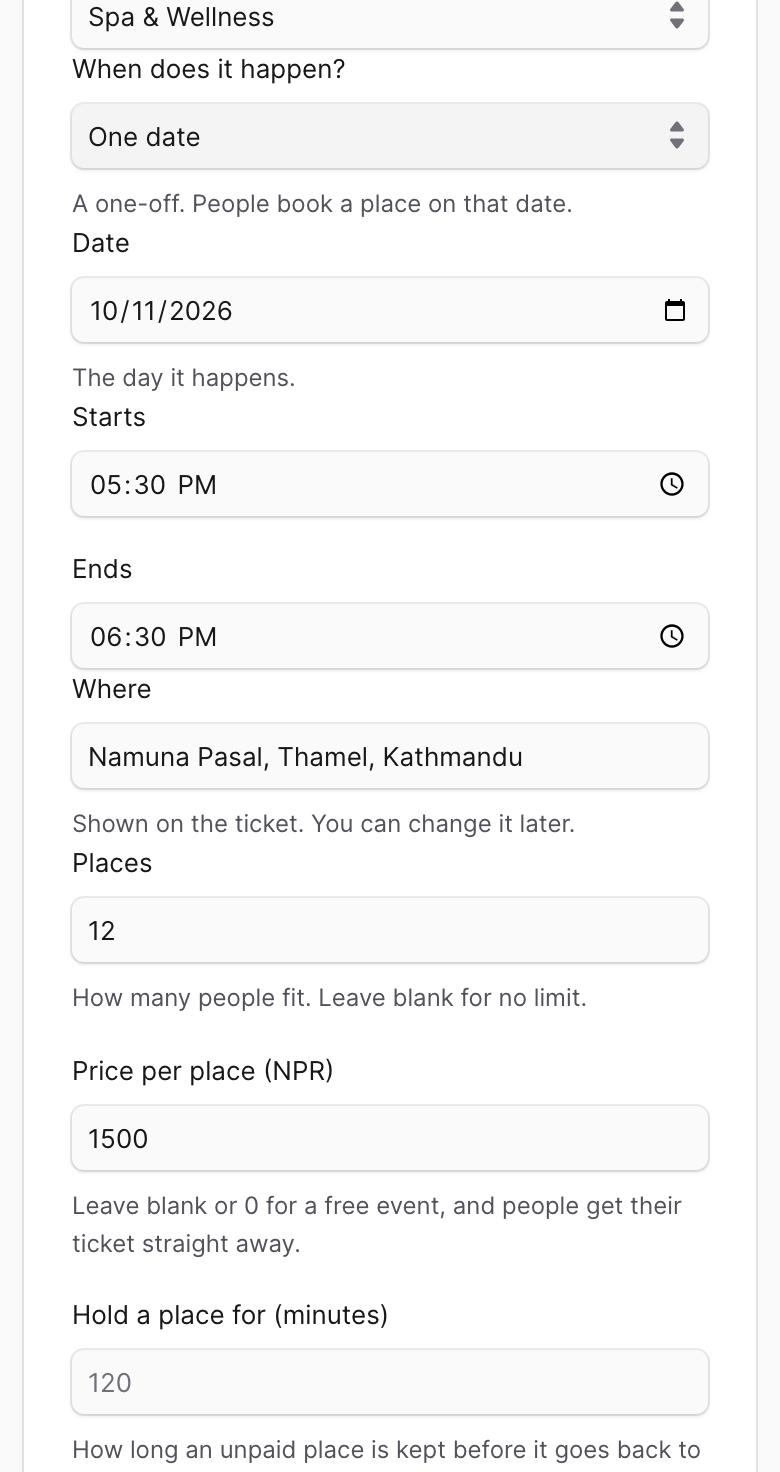
What each box means
- Starts and Ends
- The start time and the end time.
- Where
- The place. It is printed on the ticket. You can change it later.
- Places
- How many people can come. Leave it empty if there is no limit.
- Price per place
- The price for one person. For a free event, leave it empty or type 0. People then get their ticket right away.
- Hold a place for (minutes)
- How long we keep a place for someone who has booked but not paid yet. After that, the place is free for others again. If you leave it empty, it is 120 minutes.
- Your payment QR
- A photo of your own QR, for example eSewa, Khalti or your bank. The customer scans it and pays you directly.
- Payment details
- Your wallet number and name, so the customer can check they are paying the right person.
- Questions to ask
- Things you want to know from each person. Write one question on each line. You do not need a Google Form any more.
- Notice you need (days)
- Only for On request. How many days before the date you need to be asked. People cannot ask for a date sooner than this.
- Before they ask
- Only for On request. A short note people read before they ask for a date. For example: Half-day shoot, up to 4 hours.
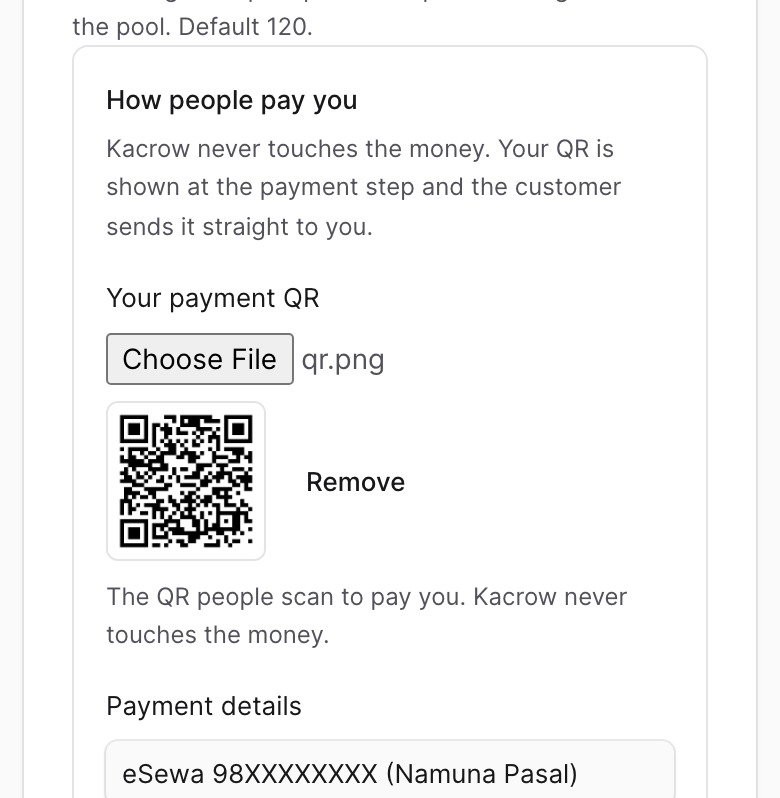
Please note: If your event has a price but no QR, you will see a red No payment QR label. People can book, but they cannot pay you. Press the label and add your QR.
Answer bookings and confirm payments
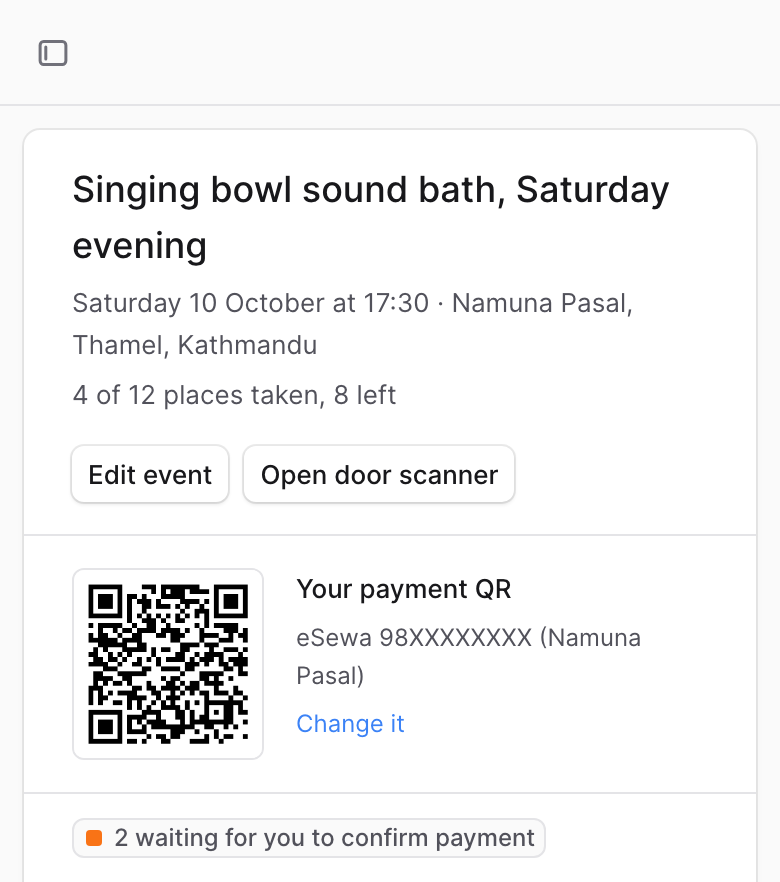
In the Events list, the Waiting on you column shows how many people are waiting for your answer. Please check it every day.
Steps
Open Events and tap the name of your event. You see everyone who has booked.
Look at the Status of each person. The list below tells you what to do for each one.
When a customer sends a payment receipt, open your own bank or wallet app and check that the money has really arrived.
If the money has arrived, press Confirm. Their ticket is now ready to use.
If the money has not arrived, press Reject and write the reason. The customer will see what you write.
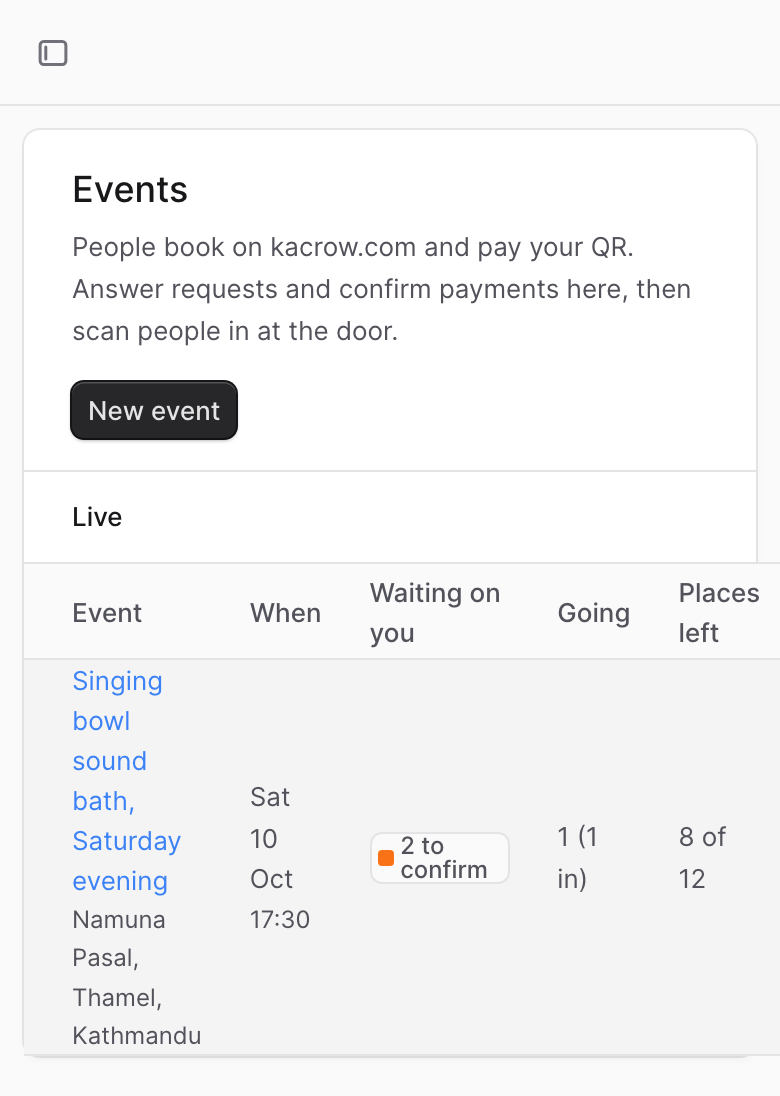
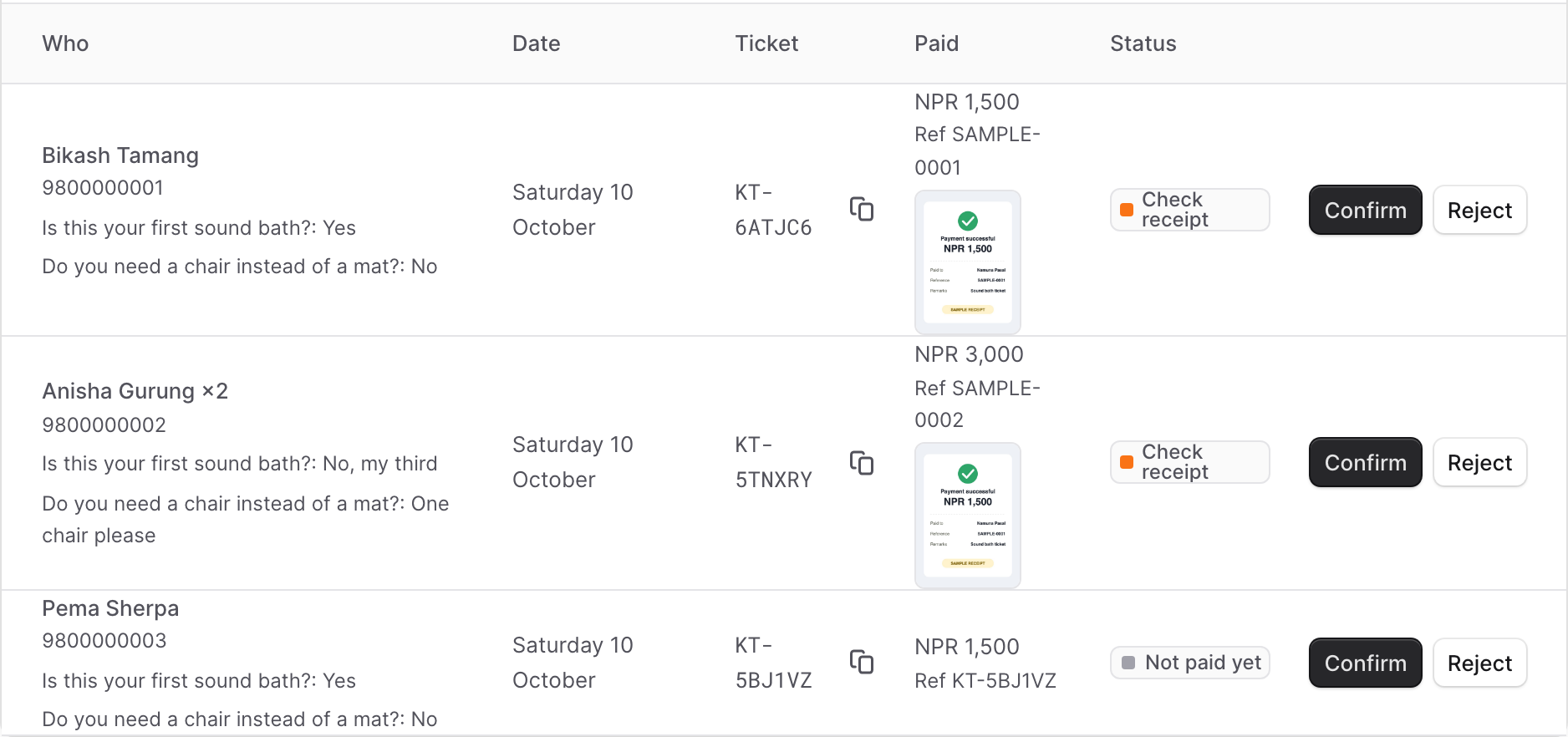
Please note: On a phone the list is wider than the screen. Slide it to the left with your finger to see Status and the buttons.
What each status means
- Wants this date
- The customer asked for a date. Press I'm free to say yes, or Can't make it to say no. They pay only after you say yes.
- Not paid yet
- They booked but have not paid yet. We keep their place for the time you set.
- Check receipt
- They sent a payment receipt. Check your bank or wallet, then press Confirm or Reject.
- Going
- Payment is confirmed and they have a ticket.
- Checked in
- They have arrived and you scanned their ticket.
- Rejected, Hold expired, Cancelled
- This booking is closed. You do not need to do anything.
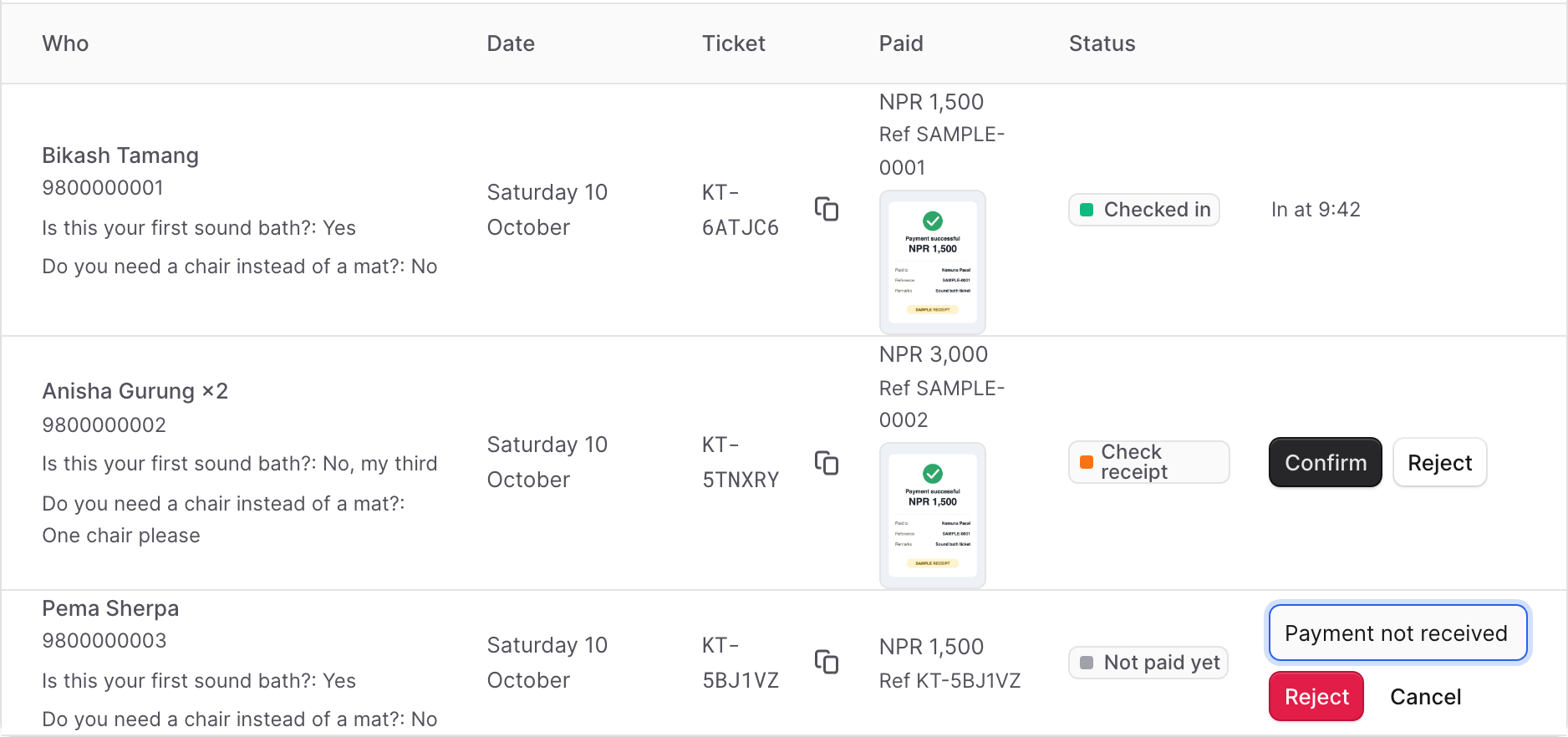
Please note: Kacrow cannot see your money. Always check your own bank or wallet app before you press Confirm. If you see a red warning that the same receipt was used before, please check very carefully.
Check tickets at the door
On the day of the event, you can use your phone to check each ticket. It takes about one second per person.
Steps
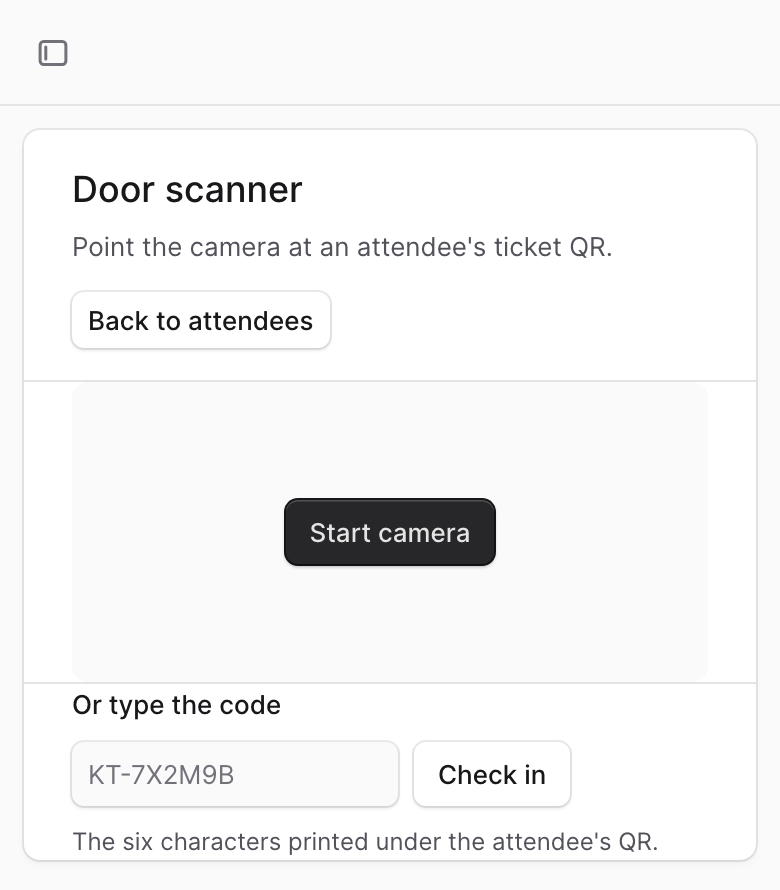
Open your event and press Open door scanner.
Press Start camera. If your phone asks, allow it to use the camera.
Point the camera at the QR on the customer's ticket.
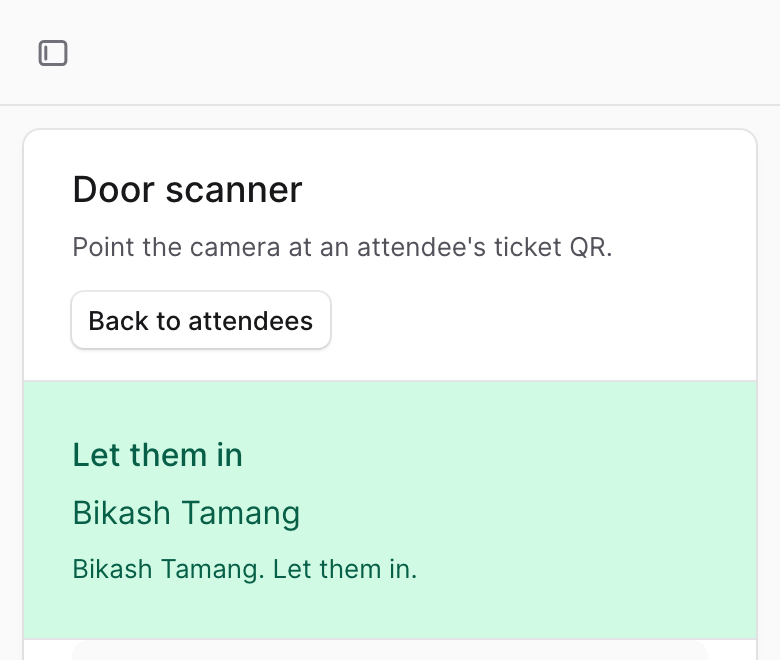
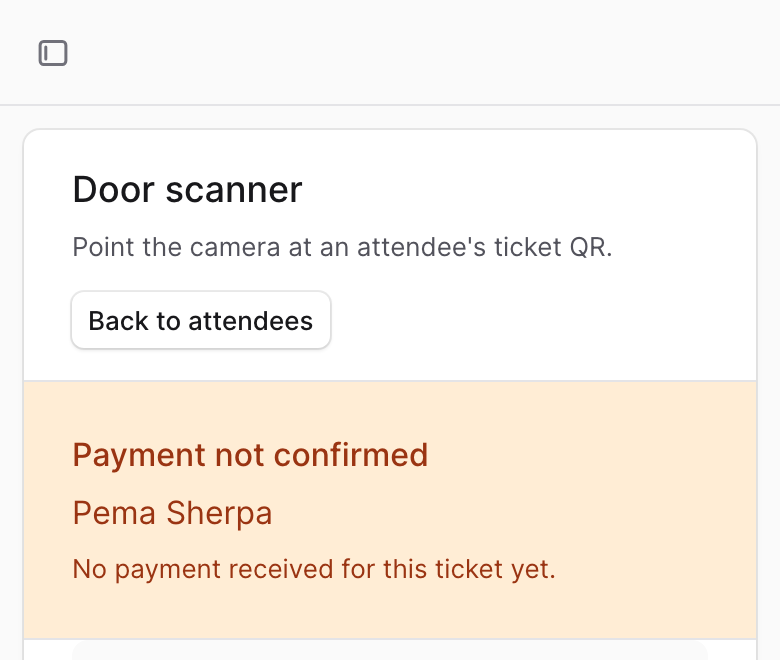
The screen shows the answer in big letters. The camera stays on, so you can scan the next person right away.
If the camera does not work, type the code that is printed under the customer's QR in the Or type the code box and press Check in.
What the answer means
- Let them in
- The ticket is good. Welcome them in.
- Already scanned
- This ticket was used before. Check that nobody is using a copy.
- Payment not confirmed
- You have not confirmed their payment yet. Most of the time they have paid. Check your bank or wallet, confirm the payment in the list, and scan again.
- Do not admit
- This ticket is not for this event, or the booking was rejected or cancelled.
- Not recognised
- We do not know this code. Try again or type the code.
Tip: The camera scanner works best in the Chrome browser on an Android phone. On an iPhone, type the code instead.
Record orders and send a tracking link
Do you sell on Instagram, WhatsApp, Facebook or by phone? Record each order here. Your customer gets a link to see where the order is, so they do not need to ask you again and again.
Record an order
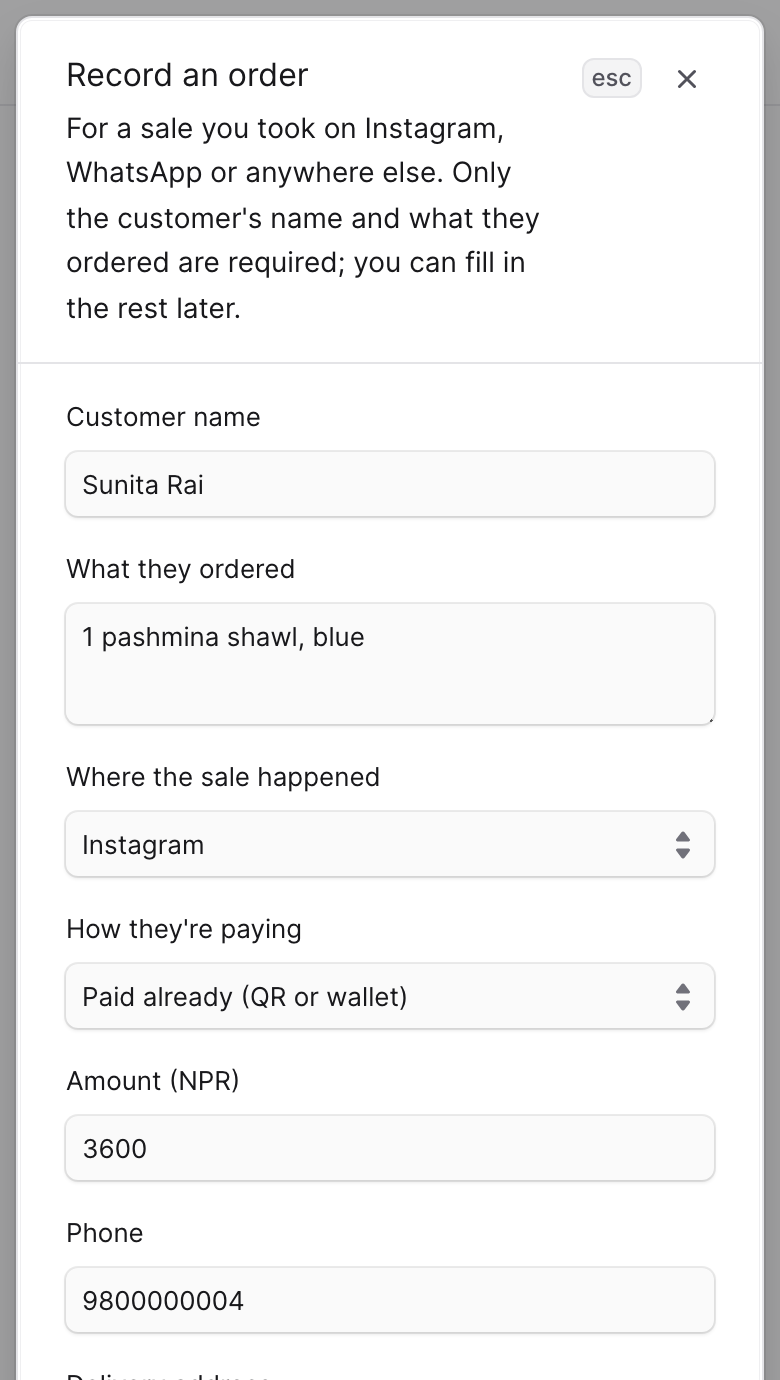
In the menu, open Orders and press Record an order.
Fill in Customer name and What they ordered. Only these two are needed. You can add the rest later.
Choose Where the sale happened and How they're paying: Paid already (QR or wallet) or Cash on delivery.
Press Save order.
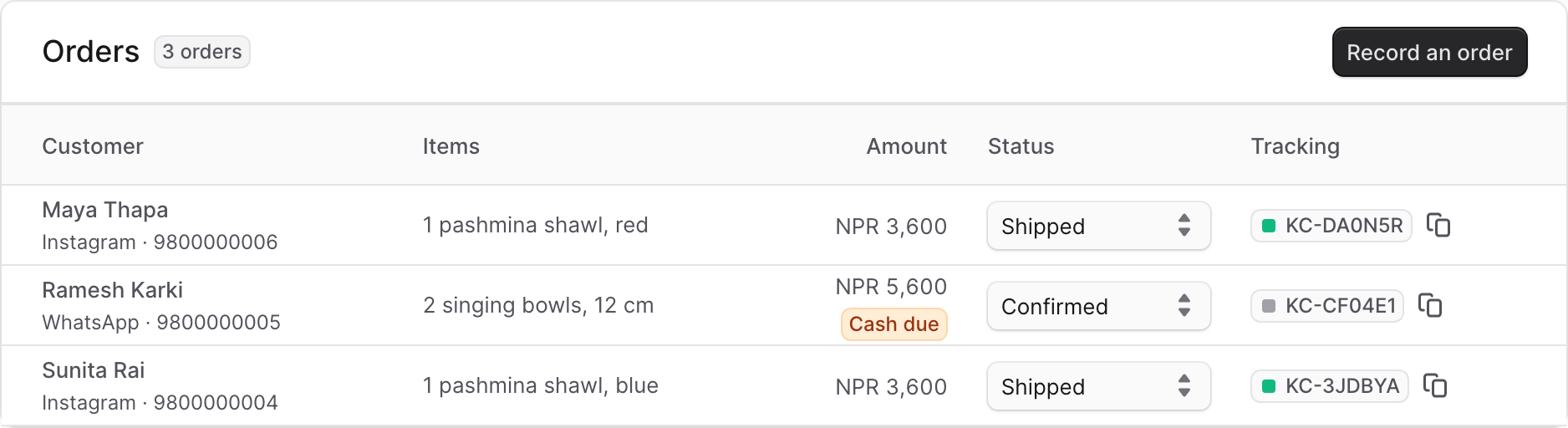
The order gets a tracking code, like KC-XXXXXX. Press the copy button next to the code and paste the link in your chat with the customer.
Update the order
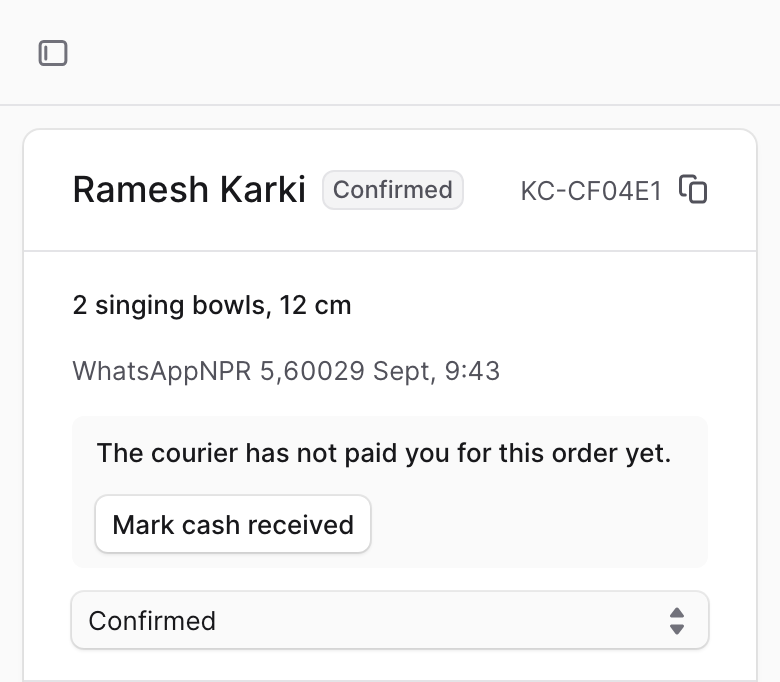
In the list, change the Status when the order moves forward: Confirmed, Payment received, Preparing, Shipped, Delivered.
Tap the customer's name to open the order. Add the phone, delivery address, Courier and Courier tracking number, then press Save details.
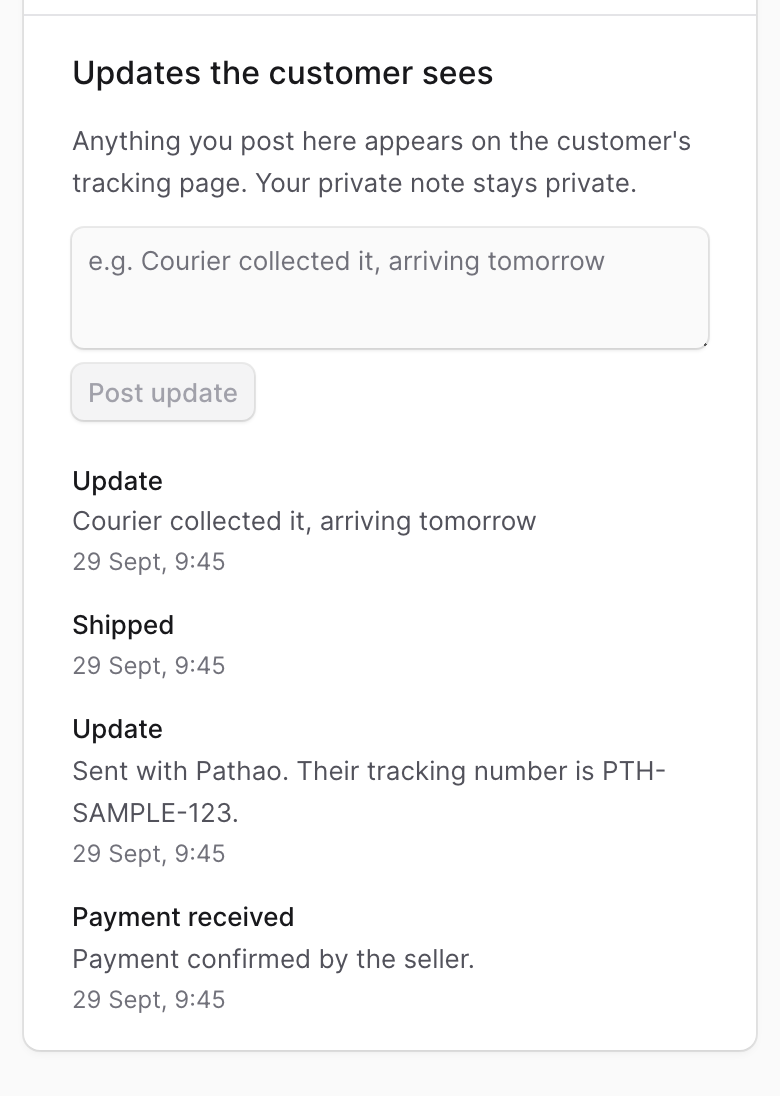
To tell the customer something, write it under Updates the customer sees and press Post update. For example: Courier collected it, arriving tomorrow.
For cash on delivery, press Mark cash received when the courier gives you the money. Until then the order shows Cash due.
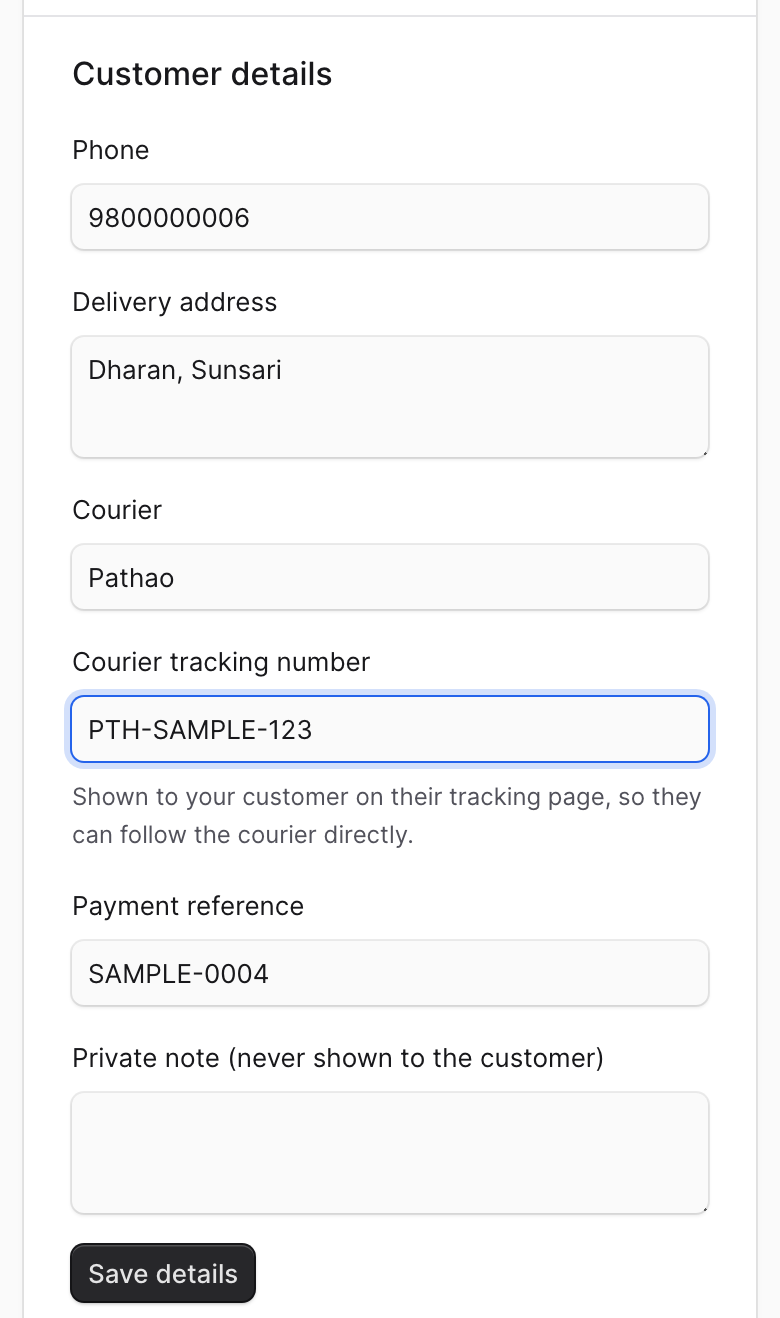
Please note: What you write in Private note is only for you. The customer never sees it.
What your customer sees
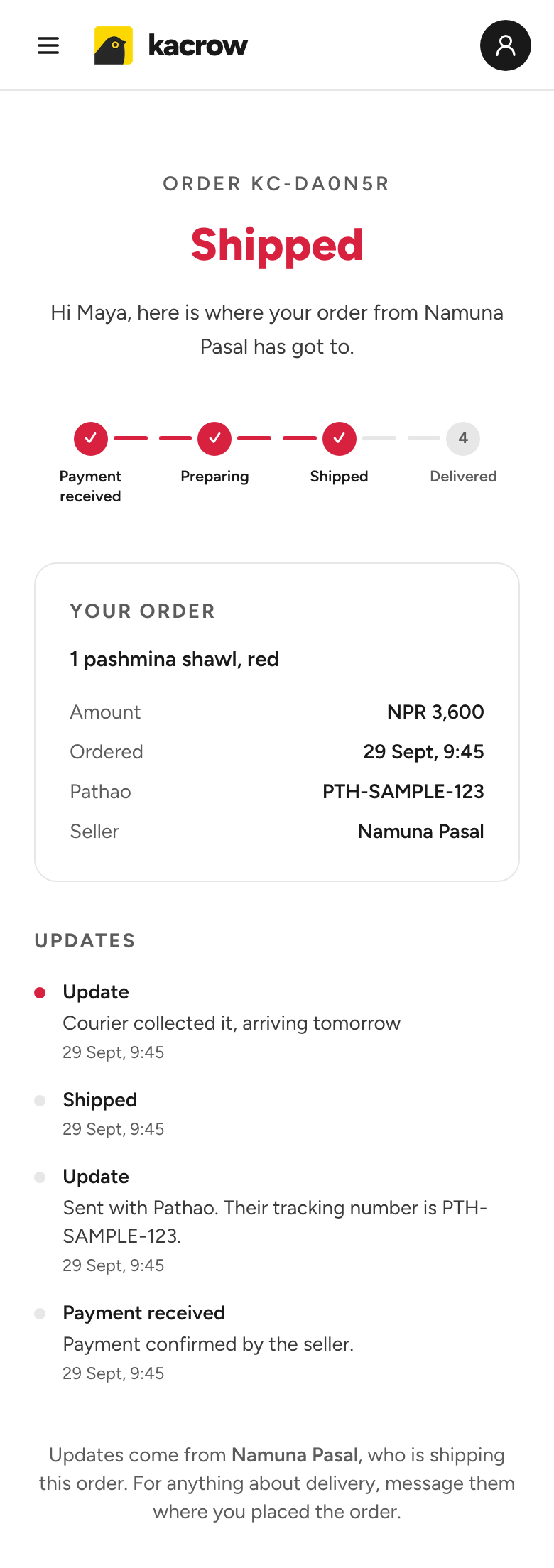
When the customer opens the link, they see where the order is, the courier and its tracking number, and every update you posted. Their phone number and address are not shown on this page.
Receipt check
When you record an order, you can add the customer's payment receipt screenshot and the payment reference. If the same receipt or reference was used on another order before, Kacrow shows you a warning.
The photo is not saved anywhere. It is only compared.
It is only a warning. The order is still saved.
Check your bank or wallet before you send the goods.
Reply to customer messages
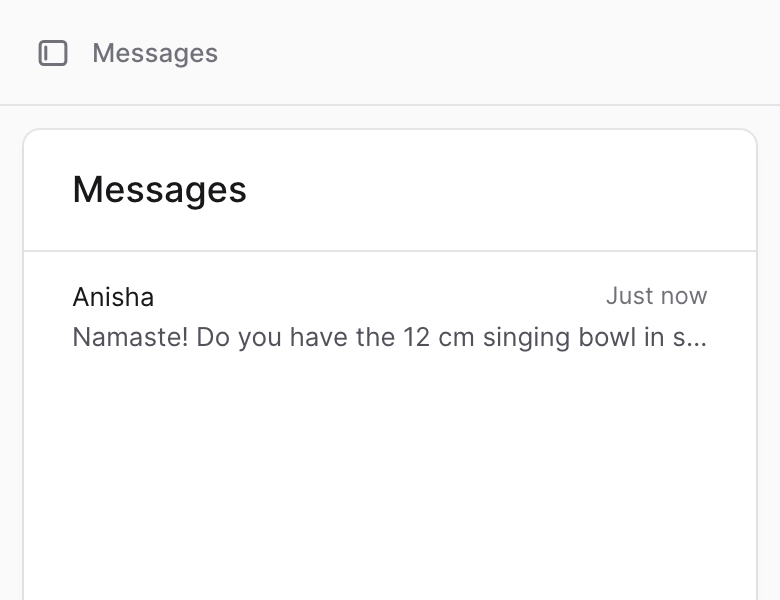
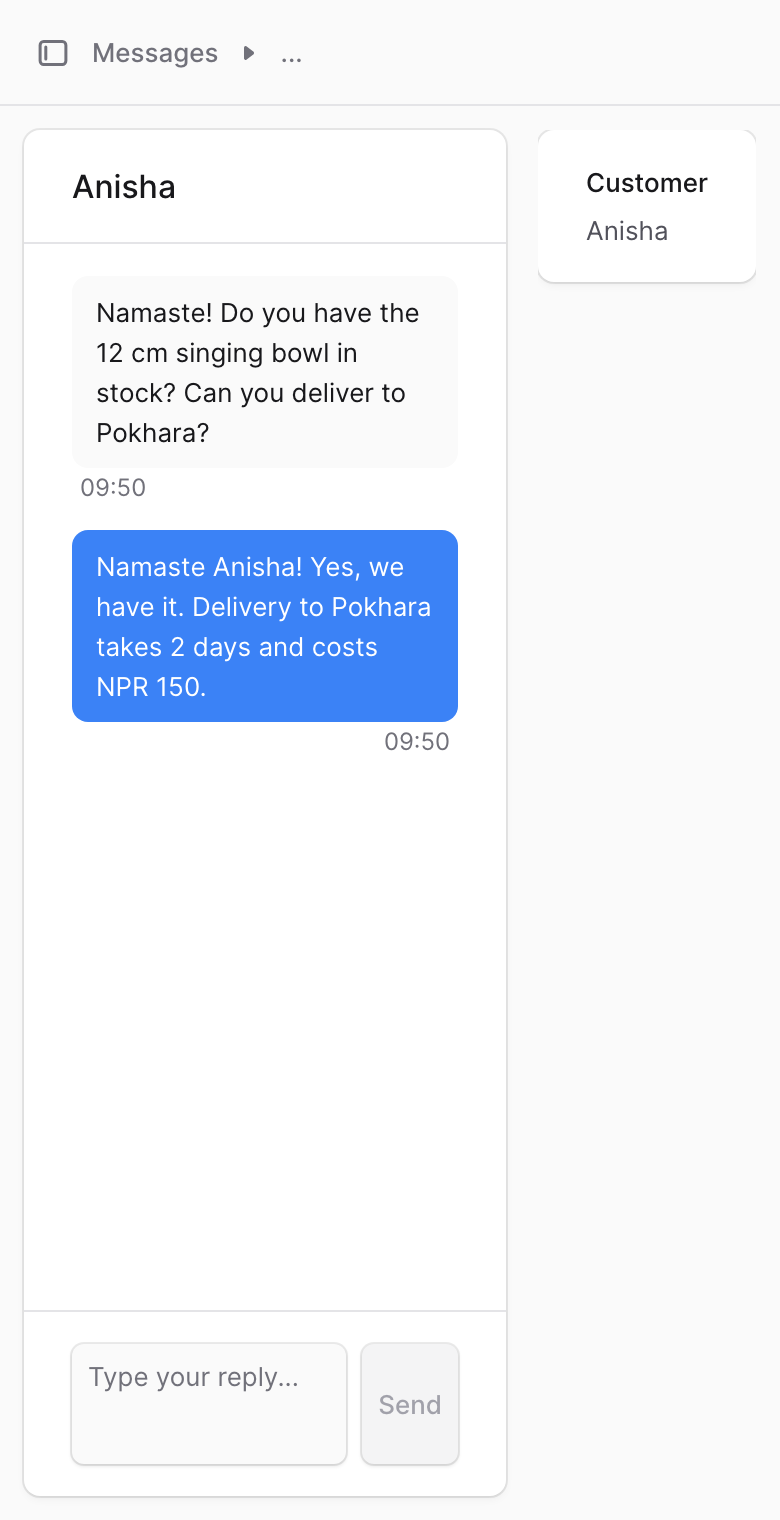
Customers can send you a message from your page on kacrow.com. You read and answer them in the seller portal.
Steps
In the menu, open Messages.
A new message has a blue number next to it. Tap the conversation to open it.
Type your answer in the box at the bottom and send it.
Please note: We also send you an email when a customer writes to you, so you do not miss it.
Tip: Try to answer on the same day. Customers who get a quick answer are much more likely to visit.
Read and answer reviews
Customers can leave stars and a review on your listings. You can answer each review.
Steps
In the menu, open Reviews.
Under a review, press Reply publicly.
Write your answer and press Post reply.
To change it later, press Edit your reply. To remove it, clear the box and save.
Please note: Everyone can see your reply. It is shown under the review, next to the name of your store. Stay polite, even when the review is bad. A calm answer makes new customers trust you.
See how your listings are doing
The Analytics page shows what people did with each of your listings in the last 30 days.
What the numbers mean
- Views
- How many times people opened your listing.
- Card clicks
- How many times people tapped your card in a list.
- Codes copied
- How many times people copied your coupon code.
- Claims
- How many times people pressed the button to get your deal.
- Map opens
- How many times people opened your location on the map.
- Shares
- How many times people shared your listing with others.
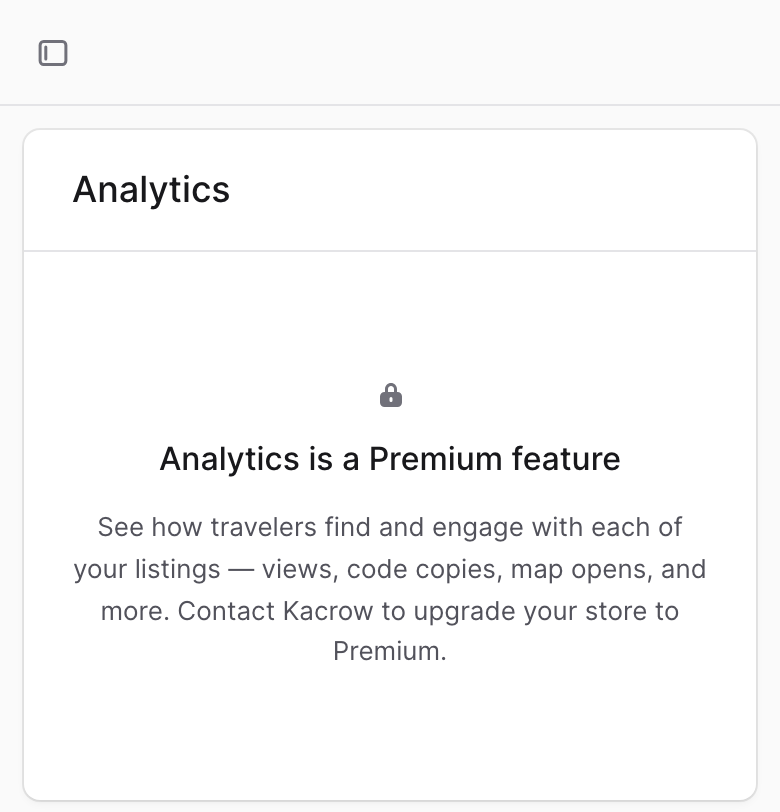
Please note: Analytics is a Premium feature. If you see a lock on this page, write to us and we will help you.
Common problems
Something is not working? Look here first.
I did not get the email to set my password.
Look in your spam folder first. The link works for 15 minutes only. If it is too late, open the seller portal and press Reset next to Forgot password? We will email you a new link.
I signed in with Google and I do not see my business.
Use the Google account that has the same email you applied with. If you applied with a different email, sign in with that email and your password.
My deal is not showing on kacrow.com.
Wait one or two minutes and open the page again. Then open My deals and look at the State column. Live means it is on the site. Ended means the last day has passed, so open the deal and choose a new date. Not on the site means it is hidden, so please write to us.
The location on my deal card is empty.
Open Settings, then Store, press Edit and fill in Area or neighbourhood. The location on every card comes from this box.
My store page does not save. It says Expected number, received string.
This message comes from the Latitude and Longitude boxes. Empty both boxes and press Save again. Everything else on your store page will save. Customers can still find you with your address and the Google Maps search query box.
My photo does not upload.
The photo must be smaller than 5 MB. Choose a smaller photo. An easy way is to open the photo on your phone, take a screenshot of it, and upload the screenshot.
Your links does not save.
Every line needs a label, then the | sign, then a full link that starts with https://. For example: Order on WhatsApp | https://wa.me/9771234567.
People say they cannot pay for my event.
Your event has no payment QR. Open Events, tap the event, press Edit event and add Your payment QR.
I cannot remove a date from my event.
Somebody is booked on that date. Reject or cancel their booking first, then remove the date.
The door scanner does not open the camera.
Allow the browser to use your camera and open the page in Chrome. If it still does not work, type the code that is under the customer's QR.
Still need help?
Write to us. Tell us the name of your business and what you were trying to do. A screenshot helps us a lot. We read every message.